The average AI influencer video request online gets almost no search volume compared to "how to create an AI influencer," but the people typing it are past the theory stage. They already have a face they like. They just want it to move.
That's a different problem than persona creation. Turning a static image into motion involves model choice, prompt structure, and a handful of technical traps that ruin more clips than bad character design ever does. This guide walks through how to create an AI influencer video from an existing persona image, step by step, with an eye on what actually breaks the process.
As a documentation-based comparison, this article focuses on documented features and workflows rather than hands-on benchmarks.
What "Image-to-Video" Actually Means for AI Influencers
When people talk about animating an AI influencer, they're describing a specific technique: an image model produces a still persona photo, then an image-to-video model uses that photo as a reference frame and follows a written motion prompt to produce a short clip, typically somewhere in the 5-10 second range before further editing. The photo tells the model what to render. The prompt tells it what to do.
This matters because the two steps use different skills. A good persona image needs consistent facial features, clean lighting, and a pose that won't confuse a motion model. A good motion prompt needs to describe camera behavior and body movement in plain, specific language, not mood words.
If a persona image doesn't already exist, that's the prerequisite step. The practical starting workflow for building a consistent AI influencer character is covered in How to Create an AI Influencer; this guide picks up after that character exists and focuses purely on making it move.
How to Create an AI Influencer Video: The Core Workflow
The sequence below reflects the pattern used across most current image-to-video pipelines, adapted for a reusable influencer character rather than a one-off image.
Step 1: Start With a Strong Persona Image
The reference image needs to be sharp, front-facing or at a slight angle, and free of motion blur or heavy filters. Busy backgrounds and extreme facial expressions tend to confuse motion models, so a neutral pose with clear features works best as the base frame.
Step 2: Clean and Upscale the Face
Small artifacts in a source image, soft edges around the eyes, compression noise, or odd skin texture can get magnified once a model tries to animate them. Upscaling the reference before animation may help reduce the chance of the face warping mid-clip.
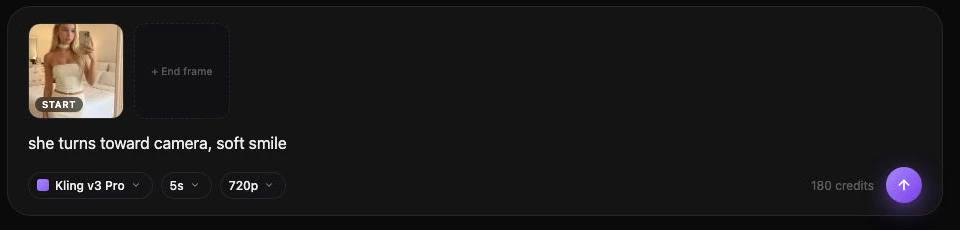
Step 3: Write a Motion Prompt That Matches the Platform
This is where many attempts go wrong. A vague prompt like "make her talk" gives the model almost nothing to work with. A more specific instruction describes camera movement, subject action, and pacing.
Hypothetical example prompt (for a fictional creator persona, "Lena," used only to illustrate structure):
Subject looks directly at camera, gives a slow nod, then a brief smile. Static camera, soft indoor lighting, no background movement, 6-second duration.Compare that with a prompt for a product-style clip:
Subject turns head slightly left, raises a coffee cup toward camera, gentle handheld camera sway, natural daylight.Both examples are illustrative only, not outputs from a documented test, but they show the level of detail that can separate a usable clip from a distorted one.
Step 4: Generate the Clip and Check for Drift
Once the clip renders, check the first, middle, and last frame side by side. If the jawline, eye color, or hairstyle shifts noticeably, the clip may benefit from a shorter duration, a cleaner source image, or a simplified prompt.
Step 5: Add Sound, Lip-Sync, or Captions if Needed
Some workflows stop at silent motion; others add voice or lip-sync using a separate specialized tool. This is a distinct step from image-to-video generation and typically uses different software built specifically for matching mouth movement to audio.
Step 6: Finish in a Standard Editor
Trimming, adding captions, adjusting pacing for platforms like TikTok or Reels, and exporting in the right aspect ratio happens in a standard video editor after the AI-generated clip is ready.
Doing This Inside Prism
Prism's approach to this workflow centers on the reusable character. A character can be created from a written description or an owned reference photo, and once that reference is approved, it gets reused across future generations. This helps maintain character consistency and is a primary defense against a face changing between the still image and the animated clip.
From there, the practical path looks like this:
- Use the Image tool to produce or refine the persona still.
- Run it through the Upscale tool to help reduce artifacts before animation.
- Use the Video or Motion tool with a written motion prompt to animate the approved character reference.
- Use Batch when producing several short clips from the same character for a content series.
- Use the Prompt tool to iterate on wording without rebuilding the character each time.
This keeps the character's identity anchored across the whole Prism creator workflow, since the same approved reference feeds every image and video step rather than treating each generation as a fresh, disconnected attempt.
Prism does not include a native talking-avatar or lip-sync feature as part of this scope, so scripted, mouth-synced dialogue video currently depends on pairing Prism's persona and motion output with a dedicated lip-sync tool downstream.
Choosing the Right Image-to-Video Model
Different image-to-video platforms and models offer varying capabilities that can influence influencer content. Some tools may focus on specific motion quality, while others might prioritize longer clip lengths or native audio integration. For instance, platforms like OpenArt's Character workspace support character creation and image/video workflows, including talking video and Motion Sync. Kling's VIDEO 3.0 documentation describes image-to-video, reference handling, and native audio, though specific capabilities can vary by model and interface. Runway's Gen-4 References workflow supports reference-led characters, scenes, and storytelling. Other tools like Luma (which includes Dream Machine functionality), Pika (for AI video creation, effects, and selfie-driven video), SeaArt (offering image, video, lip-sync, and motion tools), Artlist (with video generation using different reference types), and Seedance (a ByteDance video model family with image/video reference workflows) each present distinct options.
The practical takeaway: a model and a platform are not always the same. A platform might offer access to more than one underlying model, and the model's version can change independently of the platform's interface or pricing. It's worth checking what a given tool currently supports rather than assuming a name always maps to the same capability.
| Consideration | What it affects |
|---|---|
| Motion realism | How natural body and facial movement looks |
| Max clip length | Whether you get a quick loop or a longer scene |
| Resolution | Whether output is crisp enough for a close-up feed post |
| Access options | How much testing is possible before committing |
Prism vs Dedicated Animation Tools: When to Use Which
Prism is well suited to creators who want the persona, the still image, and the animated clip to come from one continuous character reference, useful for a recurring influencer identity rather than a single viral clip. Its Batch and Media tools also help when producing multiple short videos from the same character over time.
A dedicated image-to-video platform may be the better call when the priority is a specific motion capability, longer clip length, native synchronized audio, or a particular camera-movement style, as these platforms often focus on diverse motion output options. Readers comparing options across this category, including alternatives to Higgsfield-style all-in-one generators, can find a broader tool-by-tool breakdown in Higgsfield Alternatives.
Neither approach replaces the other. Keeping the original persona-building tool matters when identity consistency across dozens of future posts is the priority; switching to a specialized animator makes sense when a single clip needs a very specific motion effect that the persona tool doesn't focus on.
Practical Checklist Before You Hit Generate
- ✅ Source image is sharp, well-lit, and free of blur
- ✅ Face has been upscaled or cleaned if the original had artifacts
- ✅ Motion prompt describes camera behavior, not just mood
- ✅ Clip length matches platform norms (short loops for Reels/TikTok)
- ✅ First, middle, and last frame checked for face drift
- ✅ Audio or lip-sync planned as a separate step if dialogue is needed
- ✅ Final export sized correctly for the target platform
Common Mistakes to Avoid
- Vague prompts. "Make it look alive" gives a model nothing concrete to follow.
- Skipping the upscale step. Small flaws in the source image can get amplified once motion is added.
- Overloading one clip with multiple actions. Short clips often handle one clear motion better than three.
- Ignoring aspect ratio until the end. Cropping after generation often cuts off part of the subject.
- Assuming every platform includes lip-sync. Confirm whether the tool handles synced dialogue or only silent motion before planning a talking-style post.
Next Steps for Your AI Influencer Videos
Turning a still AI influencer image into video is a multi-step process, from preparing a clean reference photo to exporting a platform-ready clip. The diverse capabilities of various platforms and underlying models mean matching the tool to your specific video goal is crucial. For those new to AI influencer creation, establishing a consistent character is the foundational step. Explore the practical starting workflow in How to Create an AI Influencer. Once your character is ready, delve into Prism's character and motion tools for a deeper walk-through in the Prism Academy.